
When working in the IT industry in China, you often need to use Google to search for the latest IT technologies. In such cases, you can set up your own SSH tunnel. The prerequisite is that you need a cloud server with a public IP address (i.e., a VPS). Install the OpenSSH server security login service on the cloud server, which listens on port 22/TCP. Generally, this port can be directly accessed from within China because you often need to remotely log in to the cloud server. Then, on your home computer, use the SSH command to start a dynamic port, which is overlaid on port 22 – this is known as “port forwarding.” Please refer to the diagram below for an illustration.
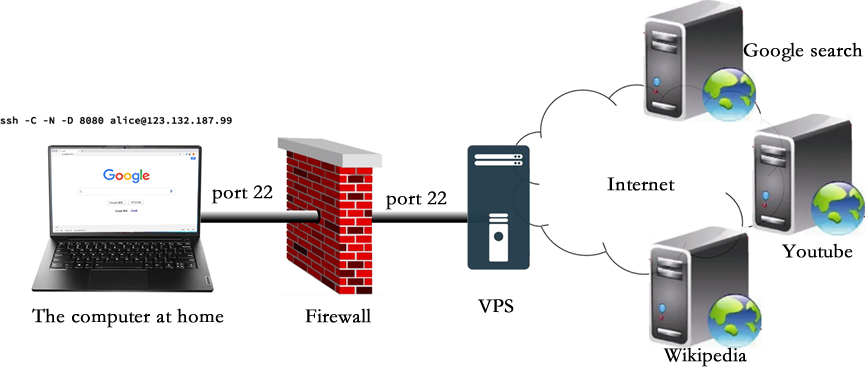
Let’s assume your home computer is running Windows 10. Press the Win+R keys to open a window, type “cmd” in the window, and press Enter to open a black-background, white-text command prompt. Then, enter the following command:
ssh -C -N -D 8080 alice@123.132.187.99
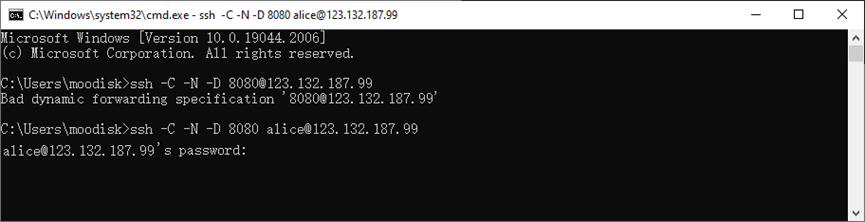
(Assuming the cloud server’s IP address is 123.132.187.99, and the user “alice” has been created with a password.)
This will start a process locally that listens on port 8080, and it acts as a SOCKS5 proxy.
To avoid having to enter a password every time you connect and to enhance security, it is recommended to use public-private key pairs for login. The steps are as follows:
ssh-keygen -q -b 4096 -C “Socks5 VPN” -t rsa -f rsa_4096 // Generates a pair of public and private keys.
ssh-copy-id -i rsa_4096.pub alice@xx.yy.zzz.xyz // Uploads the public key to the SSHD server.
After this, you can use the command ssh -C -N -D 0.0.0.0:8080 -i rsa_4096 alice@xx.yy.zzz.xyz to connect.
However, the current connection is not system-wide. Below, we will configure a system-wide connection, which requires another open-source tool called v2rayN. Of course, if you only want to use the connection in your browser, you can skip configuring a system-wide connection. The following describes two methods.
Method 1: Configure a system-wide connection.
Download and unzip the file from https://github.com/2dust/v2rayN/releases/download/7.22.6/v2rayN-windows-64-desktop.zip. Then, click on v2rayN.exe to launch it. Next, click on Configuration > Add [SOCKS] in the upper left corner and enter the following: Alias=goSocks5, address=127.0.0.1, Port=8080. Finally, click “Confirm.” Right-click the small v2rayN icon in the lower right corner of the Windows desktop and select “Set system proxy.” After this, any software on your computer will be able to bypass internet restrictions!
Method 2: Directly configure the browser
- For the Firefox browser, click the “三” icon in the upper right corner, then click “Settings,” search for “proxy,” then click “Advanced settings,” and finally click “Configure proxy” to open the following window, then refer to the image below for instructions on how to set up a proxy:
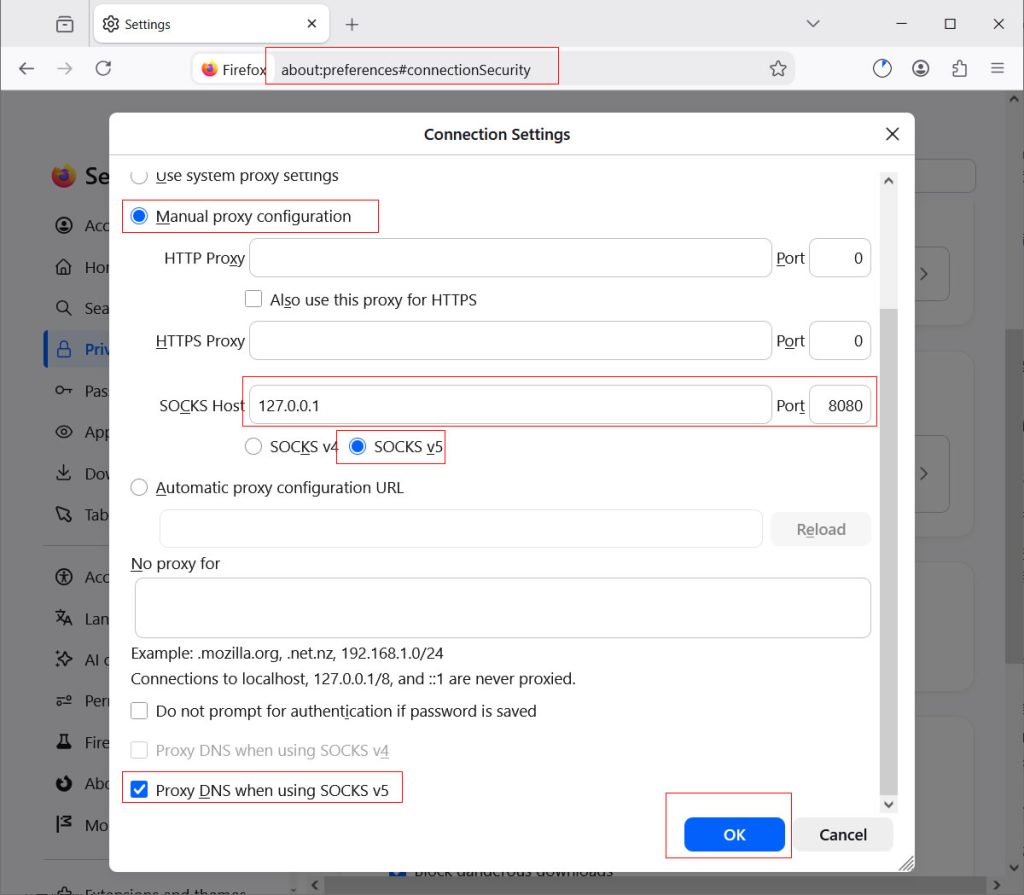
After clicking “OK,” you can open the Google search website.
- For the Chrome browser, launch the browser with the command: chrome.exe –proxy-server=”socks5://127.0.0.1:8080”.
- For the Safari browser: Click the “Safari” menu in the upper left corner, then “System Preferences,” then “Network,” then “Advanced,” then “Proxies,” then “SOCKS Proxy.” Enter the host 127.0.0.1 and port 8080, then click “OK” to complete the settings.